monday.com Services
How to Use Monday.com as a Genuinely Powerful Project Management Tool?
Most teams open monday.com, build one board, and stop there, never realizing the platform can run a project end-to-end, from the first idea request through final delivery. This Monday.com project management guide walks through how to use it properly, based on how the platform's own workflow is actually designed to work.
Monday.com Project Management Tool
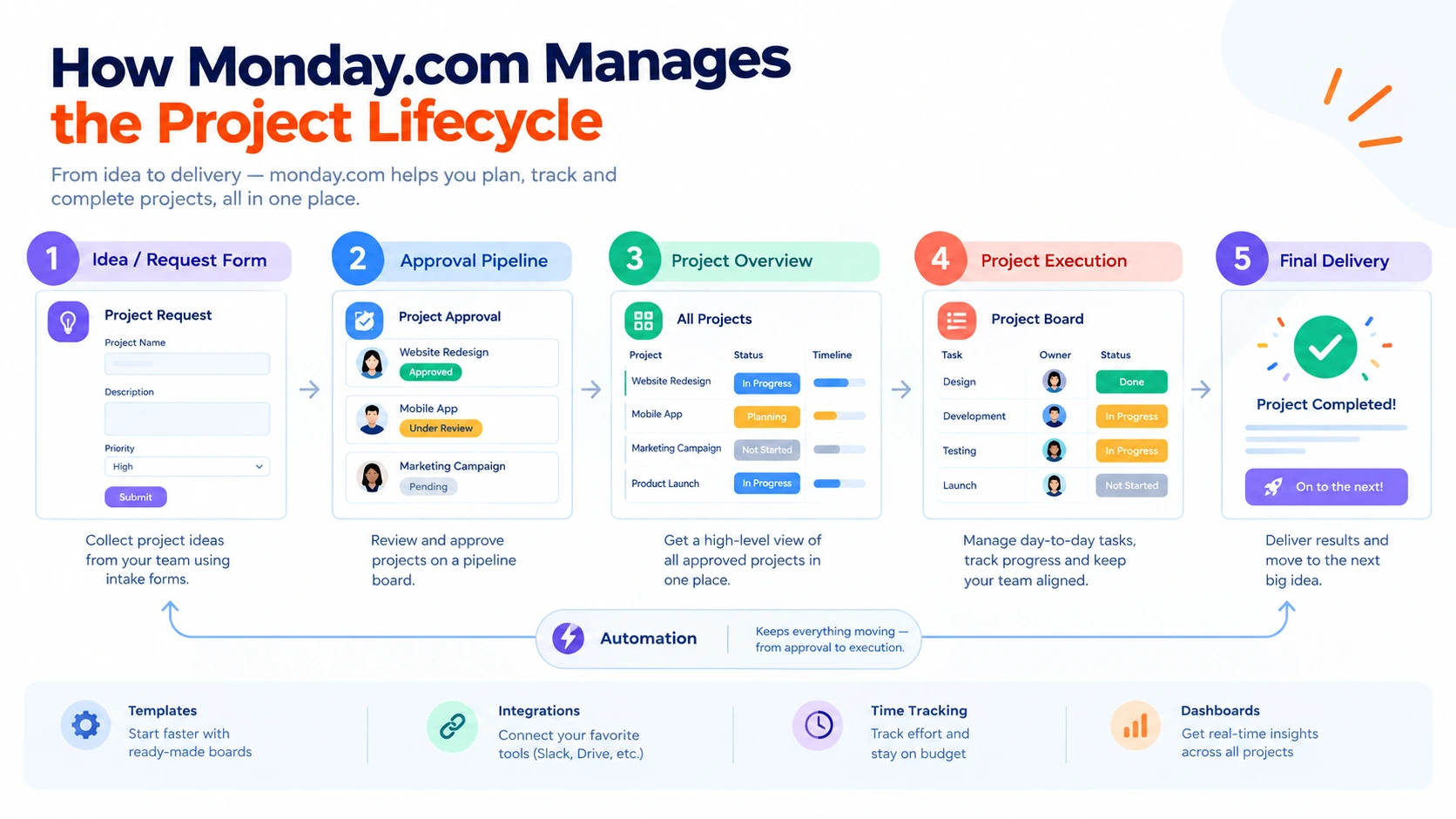
At its core, monday.com structures a project lifecycle in four stages: gathering ideas through forms, approving them on a pipeline board, tracking approved work on a high-level overview board, and managing day-to-day execution on a dedicated project board. Understanding this structure first is what separates teams using monday.com as a proper Monday.com project management tool from teams just making a glorified checklist.
How Can Monday.com Streamline My Project Workflows?
The real streamlining happens through cross-board automation. When a project's approval status changes to "Approved," an automation can instantly create a matching item on your high-level overview board, no manual copying required. Similarly, when a project phase moves to "Planning," a full project board can be auto-generated from a template, notifying the project manager automatically. This is Monday.com workflow automation doing the coordination work that used to eat hours of admin time.
What Are the Best Monday.com Templates for Project Management?
Rather than building every board from scratch, Monday.com templates for teams speed up setup significantly: a project approval pipeline template for intake, a high-level portfolio overview template for leadership visibility, and detailed execution templates tailored to specific project types (software launches, marketing campaigns, construction phases). Using a template as the starting point for a new low-level project board, rather than building one manually each time, keeps structure consistent across every project your team runs.
How Do I Set Up Task Dependencies and Timelines in Monday.com?
The dependency will connect related tasks so any change made in one task will affect the other tasks too; the dependency feature is available only through the Pro plan or above. There are four kinds of dependencies (Finish-to-Start, Start-to-Start, Finish-to-Finish, Start-to-Finish), and there are two ways of responding (flexible or strict). The visualization of the dependency feature can be done with the help of the Monday.com Gantt chart feature. In the Gantt chart, the arrows will show dependencies between tasks on the timeline. With the Timeline column (Planned Dates) and Date column (Completion Dates), one can compare the actual timeline versus the planned timeline in Monday.com projects.
What Monday.com Task Management Features Should I Know?
Beyond basic to-do items, Monday.com task management features include the Workload View for visualizing team capacity (so no one gets silently overloaded), a Numbers column paired with a Dropdown column for tracking task-level costs, and status columns that trigger automations, like marking a completion date the moment a task hits "Done." Together, these turn a simple task board into a genuine resource and budget management tool, not just a checklist.
Why Should I Integrate Monday.com With Other Tools Like Slack or Google Drive?
This is because your project is rarely confined to just one single tool. The integration of Monday.com and Slack means that you can get updates right where your teams are communicating. Beyond Slack, native integrations with Google Drive, Microsoft Teams, and hundreds of other tools mean files, calendars, and communications stay connected to the board driving the actual work, rather than living in five disconnected systems that nobody remembers to check.
How Can I Track Project Performance and Reporting in Monday.com?
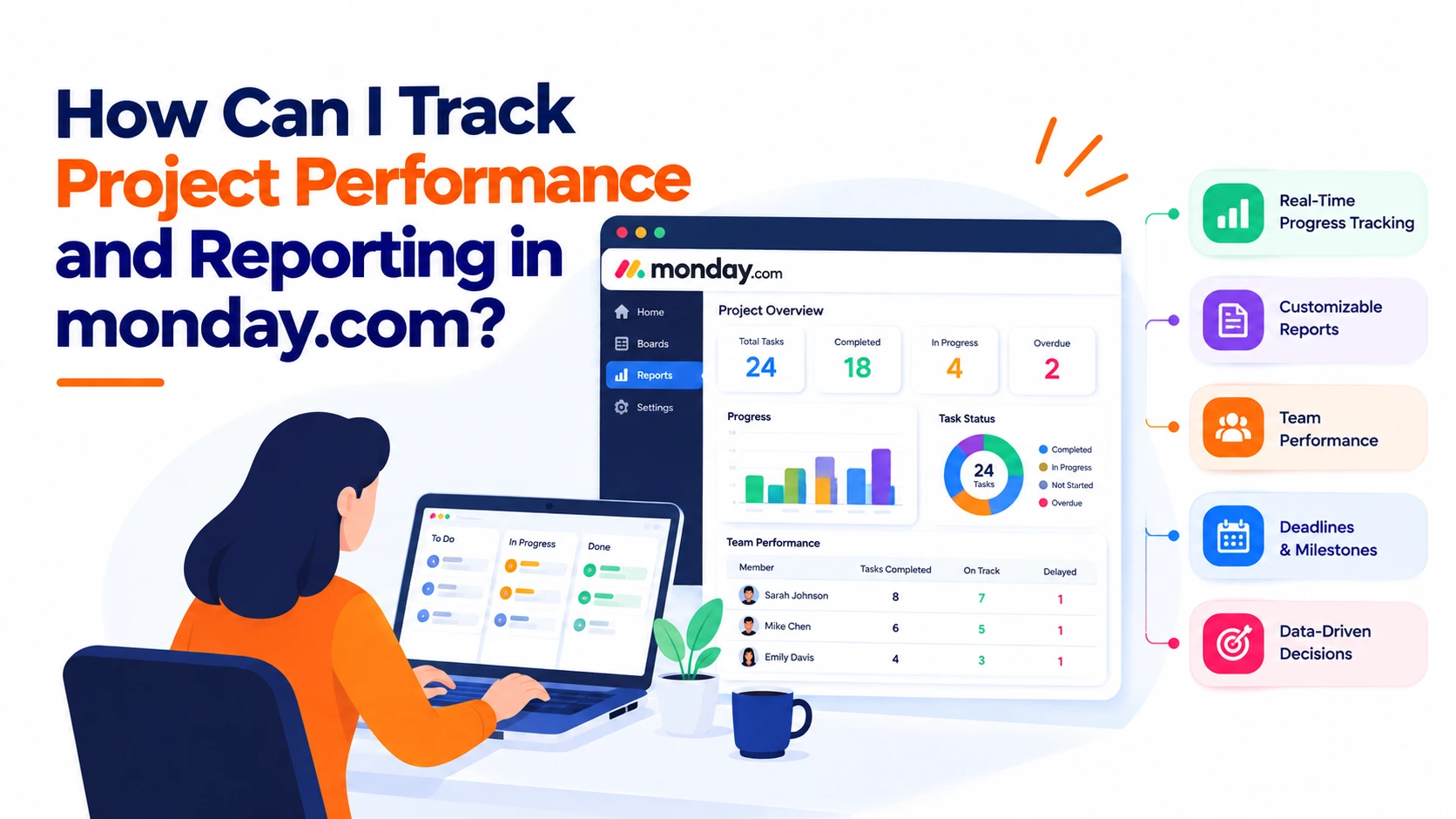
Dashboards pull data from multiple boards into one view: a Timeline widget for visualizing project phases, a pie chart widget for tracking status across all active projects, a workload widget for monitoring team capacity, and a bar chart widget comparing budget to actual spend. This is the backbone of the Monday.com reporting dashboard, giving leadership a single, live view instead of a weekly status deck someone has to manually assemble.
Time Tracking and Day-to-Day Collaboration
For teams billing by the hour or tracking effort against budget, Monday.com time tracking can be added as a custom column, letting team members log time manually or with a built-in timer directly on the task they're working on. Combined with comment threads, @ mentions, and simultaneous editing, Monday.com collaboration tools keep communication centralized on the item itself rather than scattered across email threads and separate chat messages.
Bringing It All Together
Used properly, monday.com isn't just a visual task board; it's a structured system for moving a project from a raw idea to a tracked, reported, and completed piece of work. The teams that get the most value are the ones that set up the full pipeline: intake forms, approval boards, dependency-driven timelines, and reporting dashboards, rather than stopping at a single unconnected board.